
Introduktion
The Microsoft Optical Desktop Elite for Bluetooth provides a wireless keyboard and mouse solution designed for use with Windows PCs. This combo utilizes Bluetooth wireless technology for connectivity, offering enhanced range and reliability. It enables synchronization and information sharing between your PC and other Bluetooth-enabled devices.
Vad finns i lådan
- Microsoft Bluetooth-tangentbord
- Microsoft Bluetooth Optical Mouse
- USB Bluetooth Transceiver
- Batterier (förinstallerade eller medföljer separat)
- Produktdokumentation

Image: The retail packaging for the Microsoft Optical Desktop Elite for Bluetooth, showing the keyboard, mouse, and USB transceiver.
Inställning
Installera batterier
Ensure fresh batteries are installed in both the keyboard and the mouse. Refer to the battery compartment markings for correct polarity.
Connect USB Transceiver
Plug the included USB Bluetooth transceiver into an available USB port on your Windows PC. The system will typically install the necessary drivers automatically.
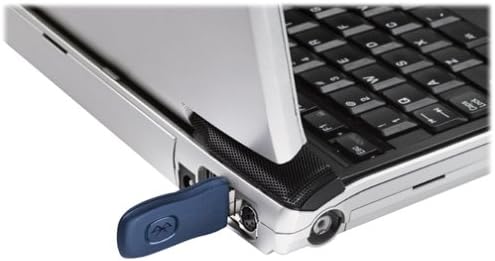
Image: A blue USB Bluetooth transceiver plugged into the side of a laptop computer.
Para ihop enheter
Follow the on-screen prompts or refer to your Windows Bluetooth settings to pair the keyboard and mouse with the transceiver. This usually involves pressing a connect button on the devices and the transceiver.
Install Software (Optional)
For advanced customization of keyboard shortcuts and mouse buttons, install the Microsoft IntelliPoint and IntelliType Pro software from the official Microsoft website or the included CD (if applicable).
Bruksanvisning
The Microsoft Optical Desktop Elite for Bluetooth offers a range of features for enhanced productivity.

Image: The Microsoft Optical Desktop Elite keyboard and mouse, showcasing their ergonomic design and wireless nature.
Tangentbordsfunktioner:
- Standard QWERTY-layout: Full-size keyboard with a standard QWERTY layout.
- Programmable Hot Keys: Utilize the customizable hot keys for quick access to applications, documents, or web sidor.
- Mediekontroller: Dedicated keys for volume control, play/pause, and track navigation.
- Side-to-Side Scrolling: The keyboard features a scroll wheel or button for horizontal scrolling in documents and web sidor.
Musfunktioner:
- Optisk spårning: Provides precise and smooth cursor control on various surfaces.
- Scrollhjul: For vertical scrolling and button functionality.
- Side-to-Side Scrolling: The mouse scroll wheel also supports horizontal scrolling.
- Programmerbara knappar: Customize side buttons for specific functions using the IntelliPoint software.
- Längre batteritid: Designed for extended use between battery replacements.

Image: A detailed diagram highlighting various features and buttons on the Microsoft Optical Desktop Elite keyboard and mouse.
Underhåll
Rengöring:
- Tangentbord: Använd en mjuk, luddfri trasa något damprengörs med vatten eller en mild rengöringslösning. Undvik överdriven fukt.
- Mus: Clean the optical sensor area on the bottom of the mouse with a dry cotton swab. Wipe the body with a soft, damp trasa.
- Do not immerse devices in liquid.
Batteribyte:
- When battery indicators on the keyboard or mouse signal low power, replace batteries promptly.
- Öppna batterifacket, ta ut de gamla batterierna och sätt i nya. Se till att polerna är rättvända.
- Kassera gamla batterier enligt lokala föreskrifter.
Felsökning
- Devices not connecting or frequently disconnecting:
- Ensure the USB Bluetooth transceiver is securely plugged into a working USB port.
- Check battery levels in both the keyboard and mouse. Replace if low.
- Re-pair the devices with the transceiver. Refer to the "Pair Devices" step in the Setup section.
- Ensure no other strong wireless signals (e.g., Wi-Fi routers, other Bluetooth devices) are causing interference. Try moving the transceiver closer to the devices.
- Starta om datorn.
- Mouse cursor is erratic or unresponsive:
- Rengör den optiska sensorn på undersidan av musen.
- Se till att du använder musen på en lämplig yta. Mycket reflekterande eller transparenta ytor kan orsaka problem.
- Kontrollera batterinivåerna.
- Keyboard keys are not responding:
- Kontrollera batterinivåerna.
- Ensure the keyboard is paired correctly.
- Verify that the keyboard is not in a sleep mode. Press any key to wake it.
- Side-to-side scrolling not working:
- Ensure the IntelliPoint/IntelliType Pro software is installed and configured correctly.
- Verify that the application you are using supports horizontal scrolling.
Specifikationer
| Särdrag | Detalj |
|---|---|
| Stämpla | Microsoft |
| Modell | Optical Desktop Elite for Bluetooth |
| Anslutningsteknik | Bluetooth, USB, Trådlös |
| Kompatibla enheter | Personal Computer (Windows OS) |
| Rörelsedetektering | Optisk (mus) |
| Tangentbordslayout | QWERTY (105 Keys) |
| Strömkälla | Batteridriven |
| Objektets vikt | 4 pund (ungefär) |
| Färg | Svart/Blå |
Garanti och support
For warranty information and technical support, please refer to the documentation included with your product or visit the official Microsoft support webwebbplats. Spara ditt inköpsbevis för garantiärenden.
Online support: support.microsoft.com