
1. Introduktion
This manual provides detailed instructions for setting up, operating, and maintaining your Epson L485 Wi-Fi Inktank Printer. Please read this manual thoroughly to ensure proper use and to maximize the performance and longevity of your device.
Produkt överview
The Epson L485 is a versatile all-in-one printer offering print, scan, and copy functionalities with the added convenience of Wi-Fi Direct. It features an innovative ink tank system designed for high-volume printing with impressive page yields and a high print resolution for quality output.

Bild 1: Framsidan view of the Epson L485 Wi-Fi Inktank Printer.
Vad finns i lådan
- Epson L485 skrivarenhet
- Software CD
- Strömkabel
- Garantikort
- Set of Original Epson Ink Bottles (Black, Cyan, Magenta, Yellow)
Video 1: En övergångview of the Epson L485 Wi-Fi Inktank Printer's features and design.
2. Installationsguide
Follow these steps to set up your Epson L485 printer for the first time.
Video 2: Step-by-step guide on how to set up your Epson InkTank Printer.
2.1 Initial Printer Preparation
- Packa upp skrivaren: Ta försiktigt ut skrivaren ur förpackningen. Ta bort alla skyddstejper och skyddsmaterial.
- Check Valve Position: Locate the ink tank valve on the side of the printer. Ensure it is in the upright (printing) position.
- Open Ink Tank Unit: Gently unhook the ink tank unit from the side of the printer and open its lid to access the ink tanks.
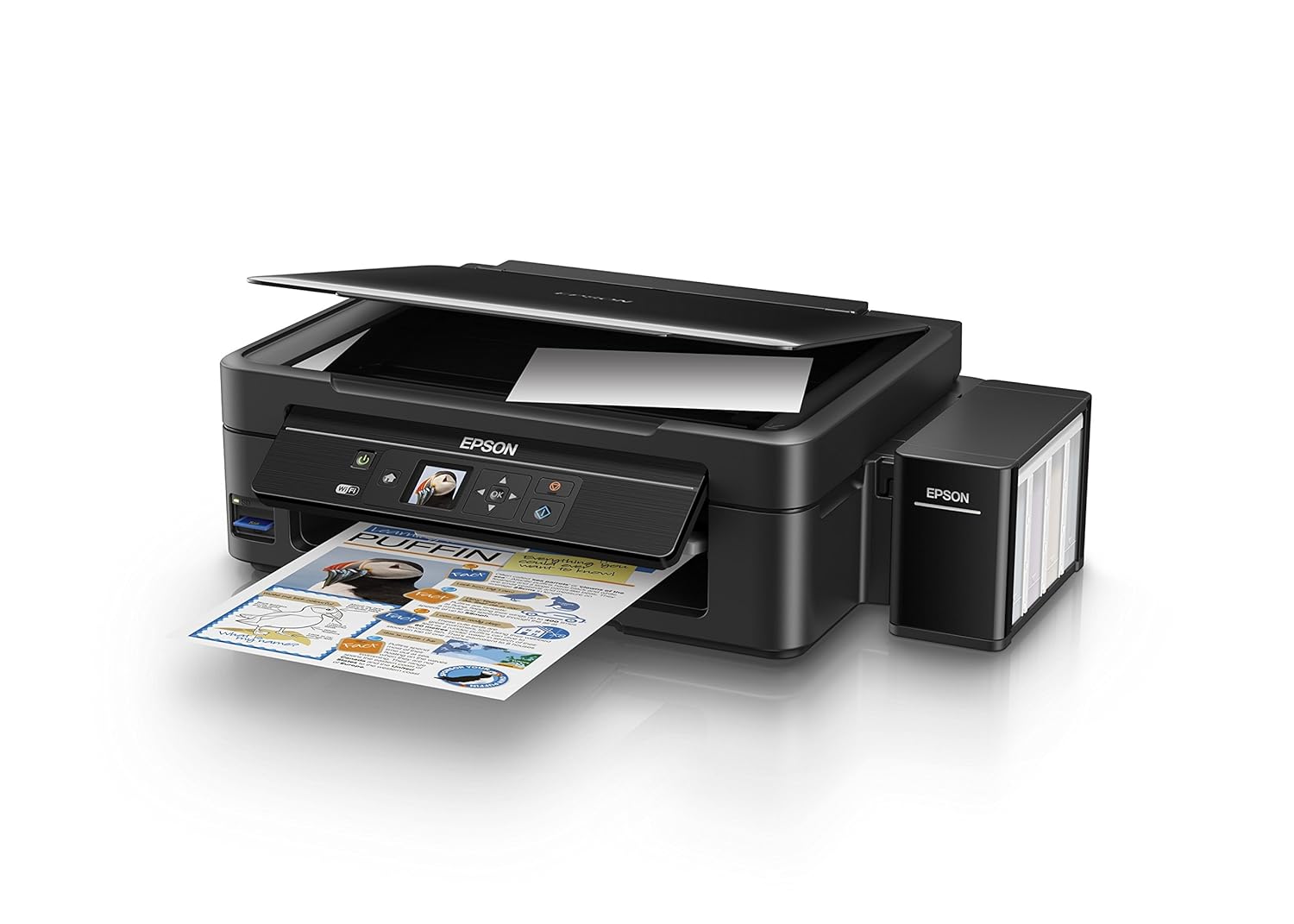
Figure 2: The ink tank unit unhooked and open, showing the ink reservoirs.
2.2 Fylla på bläckbehållare
- Prepare Ink Bottles: Snap off the tip of each ink bottle and remove the cap.
- Fyll bläckbehållare: Match the color of the ink bottle with the corresponding ink tank. Carefully pour the entire contents of each ink bottle into its respective tank. Do not overfill.
- Säkra kepsar: Once all tanks are filled, replace the caps securely on the ink tanks.
- Close Ink Tank Unit: Close the lid of the ink tank unit and re-hook it to the printer.

Figure 3: Demonstrating the process of filling an ink tank with a yellow ink bottle.

Figure 4: The four color ink bottles used for the Epson L485 printer.
2.3 Power On and Ink Charging
- Anslut ström: Plug the power cable into the printer and then into a wall outlet.
- Turn On Printer: Tryck på strömknappen för att slå på skrivaren.
- Initiate Ink Charge: Press and hold the 'Ink Charge' button (usually indicated by a droplet icon) for 3 seconds until the lights start blinking. The initial ink charging process takes approximately 20 minutes. Do not turn off or unplug the printer during this process.
- Komplettering: The lights will stop blinking when ink charging is complete.
2.4 Installation av drivrutiner
- Sätt i programvaru-CD:n: Insert the provided Software CD into your computer's CD/DVD drive. If your computer does not have a CD drive, download the latest drivers from the official Epson support webplats.
- Följ instruktionerna på skärmen: Follow the prompts on your computer screen to install the printer drivers and utilities. Agree to the license agreement and select 'Start & Connection' for setup.
- Connect USB Cable (if prompted): If setting up via USB, connect the USB cable between the printer and your computer when prompted by the installation software.
2.5 Connectivity Setup
The Epson L485 supports both USB and Wi-Fi connectivity.
USB-anslutning
Connect the USB cable from the printer to an available USB port on your computer. The printer should be recognized automatically after driver installation.
Wi-Fi-inställning
The printer features an LCD screen for easy Wi-Fi setup without needing a PC.
- Access Wi-Fi Setup: On the printer's control panel, navigate to the 'Wi-Fi Setup' option using the arrow keys and press 'OK'.
- Välj nätverk: Choose your desired wireless network from the list and enter the password if required.
- Bekräfta anslutning: Once connected, the Wi-Fi indicator light will be solid, and the LCD screen will confirm the setup is complete.

Figure 5: Demonstrating wireless printing from a smartphone to the Epson L485 printer.
3. Använda skrivaren
3.1 Utskrift
The Epson L485 delivers high-quality prints with a resolution of 5760 dpi. It offers print speeds of up to 33 ppm for black and 15 ppm for color documents.
- Ladda papper: Fyll på papper i den bakre pappersmataren. Justera pappersledarna så att de passar pappersstorleken.
- Välj utskriftsjobb: From your computer or mobile device, select the document or image you wish to print.
- Justera inställningar: Choose your print settings (e.g., paper size, print quality, color/black & white) in the print dialog box.
- Skriva ut: Klicka på "Skriv ut" för att skicka jobbet till skrivaren.

Figure 6: The Epson L485 printer in action, producing a vibrant print.
3.2 Skanning
The printer features a sheetfed scanner with an optical resolution of 1200 dpi x 2400 dpi for clear and detailed scans.
- Placera dokument: Lift the scanner lid and place your document face-down on the scanner glass, aligning it with the corner mark.
- Starta skanning: Öppna Epson Scan-programvaran på datorn eller använd skanningsfunktionen på skrivarens kontrollpanel.
- Justera inställningar: Välj skanningsinställningar som upplösning, färgläge och målmapp.
- Starta skanning: Begin the scanning process.

Figure 7: The scanner bed of the Epson L485 printer with the lid open.
3.3 Kopiering
Gör kopior direkt från skrivarens kontrollpanel.
- Placera dokument: Place the document you wish to copy on the scanner glass.
- Välj kopieringsfunktion: On the printer's LCD screen, navigate to the 'Copy' option.
- Justera inställningar: Select the number of copies, color or black & white, and other copy settings.
- Starta kopiering: Tryck på knappen 'Start' för att börja kopiera.
3.4 Wi-Fi Direct
Wi-Fi Direct allows you to connect your mobile devices directly to the printer without a router, enabling convenient wireless printing.
- Enable Wi-Fi Direct: On the printer's control panel, go to 'Wi-Fi Setup' and select 'Wi-Fi Direct'. Follow the on-screen instructions to enable it and view nätverksnamnet och lösenordet.
- Anslut mobil enhet: On your mobile device, go to Wi-Fi settings, find the printer's Wi-Fi Direct network, and connect using the provided password.
- Skriva ut: Use an Epson printing app (e.g., Epson iPrint) or your device's native print function to print directly to the printer.
4. Underhåll
4.1 Bläckpåfyllning
When ink levels are low, refill the tanks using genuine Epson ink bottles. Refer to section 2.2 for detailed ink filling instructions. Always use the correct color ink for each tank.
4.2 Rengöring
Regelbunden rengöring hjälper till att bibehålla utskriftskvaliteten och förlänger skrivarens livslängd.
- Utvändig rengöring: Torka av skrivarens utsida med en mjuk, damp trasa. Undvik att använda slipande rengöringsmedel.
- Rengöring av skrivhuvud: If print quality declines (e.g., missing lines, incorrect colors), perform a print head cleaning using the printer's utility software on your computer or through the printer's control panel menu.
- Munstyckskontroll: Run a nozzle check pattern to diagnose print quality issues before performing a head cleaning.
5. Felsökning
Det här avsnittet behandlar vanliga problem som du kan stöta på med din Epson L485-skrivare.
5.1 Skrivaren svarar inte
- Se till att skrivaren är påslagen och ordentligt ansluten till eluttaget.
- Check the USB cable connection to both the printer and computer, or verify the Wi-Fi connection status.
- Starta om både skrivaren och din dator/mobila enhet.
5.2 Dålig utskriftskvalitet
- Perform a nozzle check to identify clogged nozzles. If necessary, run a print head cleaning cycle.
- Kontrollera bläcknivåerna och fyll på eventuella låga bläckbehållare.
- Ensure you are using genuine Epson ink and appropriate paper types for your print job.
5.3 Pappersstopp
- Turn off the printer and carefully remove any jammed paper from the paper tray, output tray, or inside the printer.
- Se till att papperet är korrekt ilagt och inte är skrynkligt eller skrynkligt.urled.
6. Specifikationer
| Stämpla | Epson |
| Modellnamn | L485 |
| Anslutningsteknik | Wi-Fi |
| Utskriftsteknik | Bläckstråle |
| Specialfunktion | Minneskortplats |
| Färg | Svart |
| Skrivarutdata | Färg |
| Maximal utskriftshastighet (färg) | 15 ppm |
| Maximal utskriftshastighet (monokrom) | 33 ppm |
| Objektets vikt | 6001 gram |
| Typ av skrivare | Bläckstråle |
| Skannertyp | Arkmatad |
| Maximal kopieringshastighet (svartvitt) | 33 ppm |
| Visningstyp | LCD |
| Kompatibla enheter | Smartphones |
| Bläck färg | Svart, cyan, magenta, gul |
| Upplösning | 5760 x 5760 DPI |
| Ytterligare skrivarfunktioner | All In One (Print, Scan, Copy) |
| Maximal mediestorlek | A4 |
| Pappersstorlek | A4 |
| Dubbelsidig utskrift | Inga |
7. Garanti och support
Your Epson L485 Wi-Fi Inktank Printer comes with a free installation service and an onsite warranty.
7.1 Free Installation and Onsite Warranty
To avail free installation for your printer, please contact Epson support after receiving your product. The onsite warranty covers manufacturing defects and ensures professional assistance at your location.
7.2 Kontakta supporten
For installation, support, or any technical assistance, please contact Epson customer service:
- Telefon: 1860 3000 1600 (Timings: 9 am - 6 pm)