
1. Introduktion
This manual provides detailed instructions for the DR1TECH DR10042 Shock Pad Wireless Controller. Please read this manual carefully before using the product to ensure proper operation and to maximize your gaming experience. This controller is designed for compatibility with PlayStation 4, PlayStation 3, PC, and iOS devices, and supports PlayStation 4 generation games on PlayStation 5.
2. Produkt överview
The DR1TECH DR10042 Shock Pad is a wireless gaming controller featuring dual vibration feedback, a touch pad, and a rechargeable lithium-ion battery. It offers a comfortable design for extended gaming sessions.
2.1 Controller Components
- Analoga spakar: Två klickbara analoga spakar för exakta rörelser och kamerakontroll.
- Riktningsplatta (D-Pad): För riktningsinmatning.
- Åtgärdsknappar: Triangle, Circle, Cross, Square buttons.
- DELA-knapp: For sharing gameplay content.
- ALTERNATIV-knapp: För menyer och alternativ i spelet.
- Hemknapp: För att komma åt systemmenyer.
- Pekplatta: Interaktiv yta för specifika spelfunktioner.
- L1/R1-knappar: Knappar på axeln.
- L2/R2-utlösare: Analoga triggers.
- TURBO-knapp: For rapid fire functionality.
- EXT-port: Expansion port.
- Hörlursuttag: För ljudutgång.
- USB laddningsport: För laddning av handkontrollen.
- Återställningsknapp: Small button on the back for resetting the controller.
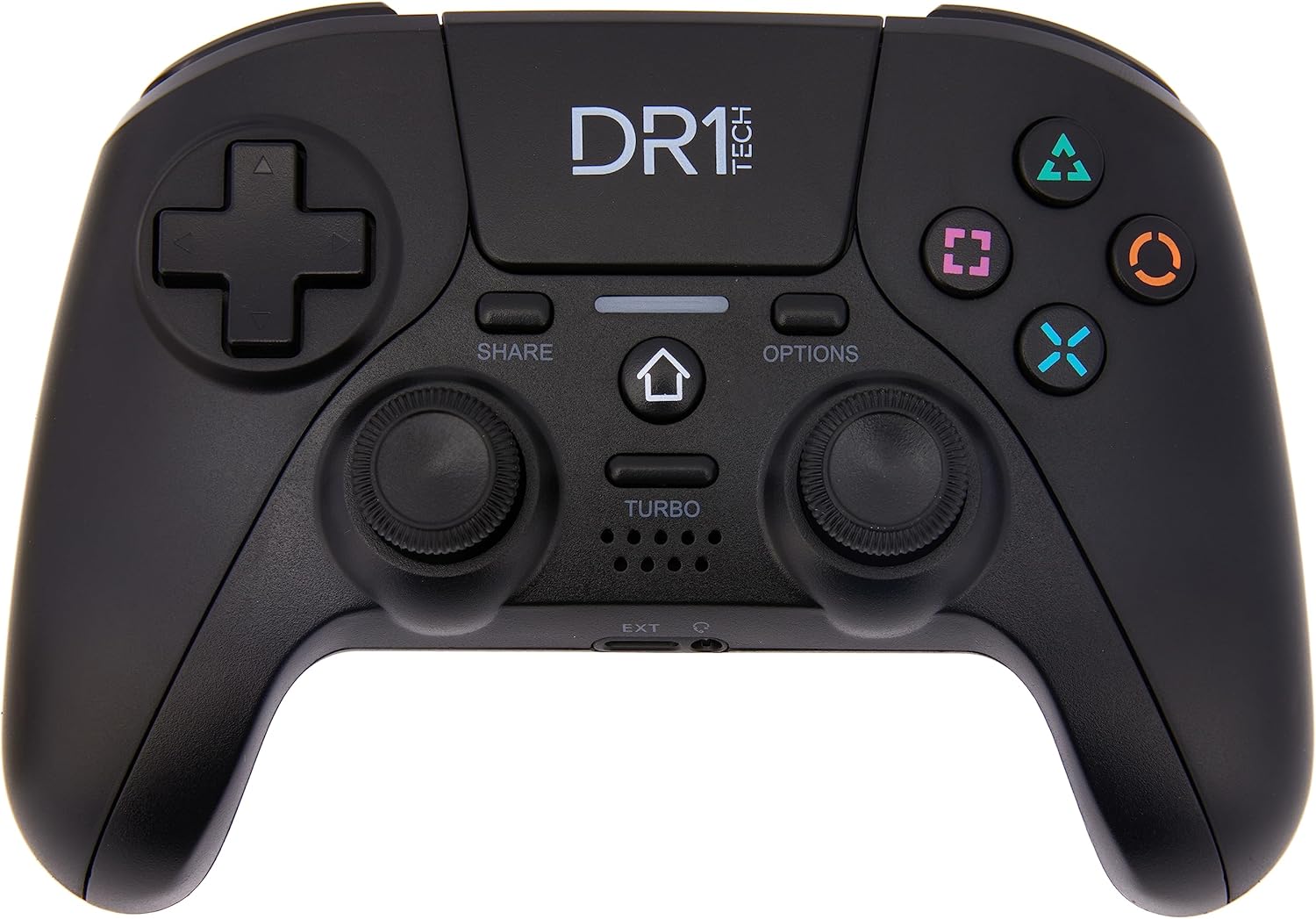
Bild 1: Framsidan view of the DR1TECH DR10042 Shock Pad Wireless Controller, showing all buttons, analog sticks, and the touch pad.

Bild 2: Baksida view of the DR1TECH DR10042 Shock Pad Wireless Controller, showing the product label and reset button.

Figure 3: Close-up of the EXT port and headphone jack located on the bottom edge of the controller.

Figure 4: Close-up of the USB charging port located on the front edge of the controller.
3. Inställning
3.1 Ladda kontrollen
The controller is equipped with a rechargeable Lithium-Ion battery. Before first use, fully charge the controller.
- Connect the supplied USB charging cable to the controller's USB port.
- Connect the other end of the USB cable to a powered USB port (e.g., console, PC, or USB wall adapter).
- The indicator light on the controller will show charging status. A flashing signal indicates a low battery level.

Figure 5: The USB charging cable included with the controller.
3.2 Pairing with PS4/PS3
To pair the controller wirelessly with your PlayStation 4 or PlayStation 3 console:
- Se till att din konsol är påslagen.
- Tryck och håll ned DELA knappen och Hem knappen samtidigt i cirka 3 sekunder.
- The indicator light on the controller will begin to flash rapidly, indicating it is in pairing mode.
- On your console, navigate to the Bluetooth device settings and select the DR1TECH controller from the list of available devices to complete the pairing process.
3.3 Ansluta till PC
The controller can be connected to a PC via USB cable or wirelessly via Bluetooth.
- USB-anslutning: Connect the controller to your PC using the supplied USB cable. The PC should automatically detect and install the necessary drivers.
- Bluetooth-anslutning: Follow the pairing steps for PS4/PS3 (Section 3.2), then enable Bluetooth on your PC and search for the controller in your Bluetooth settings to pair.
3.4 Connecting to iOS Devices (iPhone/iPad)
To connect the controller to your iPhone or iPad:
- Se till att Bluetooth är aktiverat på din iOS-enhet.
- Tryck och håll ned DELA knappen och Hem button simultaneously for approximately 3 seconds on the controller.
- The indicator light on the controller will flash rapidly.
- På din iOS-enhet, gå till Inställningar > Bluetooth and select the DR1TECH controller from the list of available devices.
4. Bruksanvisning
4.1 Grundläggande kontroller
The DR1TECH Shock Pad functions similarly to standard gaming controllers. Refer to your game's instructions for specific button assignments.
4.2 Specialfunktioner
- Dubbel vibration: The controller features dual vibration motors that provide tactile feedback during gameplay, enhancing immersion.
- Pekplatta: The integrated touch pad can be used for navigation or specific in-game actions, depending on the game's design.
- DELA-knapp: Allows users to quickly share screenshots or video clips of their gameplay.
- ALTERNATIV-knapp: Typically used to access in-game menus, pause games, or view alternativ.
- TURBO -funktion: Press and hold the TURBO button, then press the desired action button (e.g., Cross, Square) to enable rapid-fire functionality for that button. Press TURBO and the action button again to disable.

Figure 6: Illustration of analog stick movement capabilities.

Figure 7: Diagram showing the placement of internal vibration motors for haptic feedback.

Figure 8: Visual representation of key features: wide compatibility, long-lasting rechargeable battery, and responsive analog sticks.
5. Underhåll
5.1 Batterivård
- Undvik att ladda ur batteriet helt ofta.
- Charge the controller regularly, even if not in use for extended periods, to maintain battery health.
- Store the controller in a cool, dry place.
5.2 Rengöring
To clean the controller, use a soft, dry cloth. Do not use harsh chemicals or abrasive materials, as these can damage the surface or internal components.
6. Felsökning
- Kontrollen paras inte ihop: Ensure the controller is charged. Repeat the pairing process (Section 3.2). Make sure no other Bluetooth devices are interfering.
- Kontrollenheten svarar inte: Try resetting the controller by inserting a small pin or paperclip into the RESET button hole on the back of the controller.
- Buttons or joysticks not responding correctly: Ensure the controller is fully charged. If issues persist, try resetting the controller.
- Laddningsproblem: Kontrollera att USB-kabeln är ordentligt ansluten till både kontrollenheten och strömkällan. Prova en annan USB-port eller kabel.
- Audio quality from headphone jack is poor: Ensure the headphone plug is fully inserted. Test with different headphones.
7. Specifikationer
| Särdrag | Specifikation |
|---|---|
| Stämpla | DR1TECH |
| Modell | DR10042 |
| Anslutningsmöjligheter | Bluetooth |
| Kompatibla enheter | PS4, PS3, PS5 (PS4 games), PC, iOS |
| Specialfunktioner | Dual Vibration (Rumble), Touch Pad |
| Strömkälla | Batteridriven |
| Batterityp | Lithium-Ion (rechargeable, included) |
| Antal knappar | 17 |
| Produktens mått | 15 x 5.2 x 9.9 cm |
| Objektets vikt | 220 g |
| Tillverkare | DR1TECH |
8. Garanti och support
For warranty information or technical support, please refer to the official DR1TECH webwebbplatsen eller kontakta deras kundtjänst direkt. Spara ditt inköpskvitto som köpbevis.
9. Officiella produktvideor
Inga officiella produktvideor från säljaren finns tillgängliga för inbäddning i den här manualen.