Introduktion
The Logitech MX Brio 705 for Business is a high-performance 4K webcam designed for professional use. It features advanced imaging technology, intelligent video capabilities, and robust audio capture to enhance virtual meetings and presentations. This manual provides instructions for setting up, operating, maintaining, and troubleshooting your webglas.
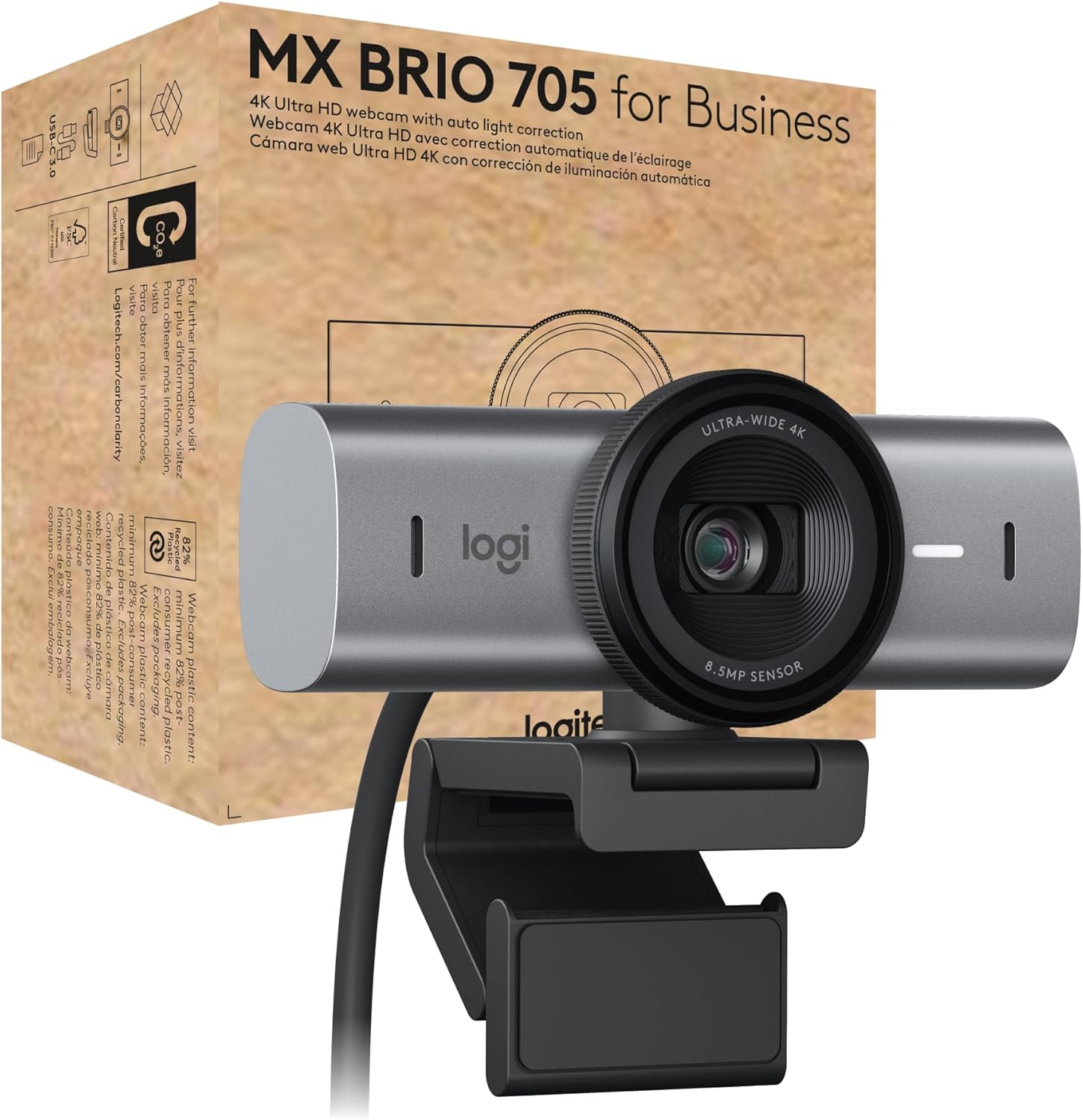
Image: Logitech MX Brio 705 for Business 4K Webkamera, showasinenheten och dess förpackning i butik.
Vad finns i lådan
Kontrollera att alla komponenter finns i förpackningen:
- MX Brio 705 for Business webkam
- USB-C 3.0 cable (1.5 meters)
- Mount clip with removable mount adapter
- Användardokumentation

Image: An illustration showing the MX Brio 705 webcam, its USB-C cable, and the monitor mount, representing the items included in the product box.
Inställning
- Montering av Webkam:
Fäst webcam to your monitor or laptop screen using the integrated mount clip. Ensure the clip is securely fastened and the webcam is stable. The mount adapter is removable if you prefer to use a tripod (not included) with the standard 1/4-inch thread.

Image: A detailed diagram highlighting the various components of the MX Brio 705 webcam, such as the privacy shutter, 4K Ultra HD lens, LED activity light, USB-C connectivity, dual beamforming mics, and magnetic mount.
- Ansluta till din dator:
Connect the provided USB-C 3.0 cable to the USB-C port on the webcam and then to an available USB-C port on your computer. If your computer only has USB-A ports, a USB-C to USB-A adapter (not included) may be required.
- Första erkännandet:
Din dator bör automatiskt upptäcka webcam. For optimal performance and access to advanced features, download and install the Logitech Logi Options+ software from the official Logitech webplats.
Bruksanvisning
Grundläggande användning
- Ström på/av: De webcam powers on automatically when connected to your computer and recognized by an application.
- Activity Light: An LED activity light on the webcam illuminates when the camera is active and in use.
- Kompatibilitet: The MX Brio 705 is certified for Microsoft Teams, Zoom, and Google Meet, and works with Chromebook, Windows, macOS, and most popular video calling platforms.

Image: The MX Brio 705 webcam positioned on a monitor in an office environment, with logos indicating its certification for Microsoft Teams, Zoom, Google Meet, and compatibility with Chromebook.
Avancerade funktioner
- 4K Ultra HD Video Quality: De webcam features an advanced image sensor and custom-designed lens for crystal-clear 4K video resolution.
- Auto Light Correction: AI-powered image enhancement automatically adjusts lighting conditions to ensure you appear natural and well-lit, even in challenging environments. This feature provides accurate skin tones and facial tracking.
- Auto-framing: This intelligent feature keeps you centered in the frame, even if you move slightly during a call, ensuring you remain the focus of the video.
- Visa läge: Easily present physical objects or documents on your desk by tilting the webcam downwards. This mode optimizes the view for sharing content directly from your workspace.

Image: A user's hand interacting with a notebook on a desk, illustrating the webcam's Show Mode and auto-framing capabilities, designed to keep the subject and presented items in focus.
- Integrerad sekretesslucka: For privacy and security, the webcam includes an integrated physical privacy shutter. Rotate the lens ring to open or close the shutter, providing a clear visual indication of its status.
- Dual Beamforming Microphones: The built-in dual beamforming microphones are designed to reduce background noise and enhance your voice, ensuring clear audio transmission during calls.

Image: The MX Brio 705 webcam with graphic overlays depicting sound waves, emphasizing the functionality of its dual beamforming microphones for superior audio clarity.
Logitech Sync for Remote Management
For IT professionals, the MX Brio 705 for Business can be remotely updated and managed using Logitech Sync software. This platform allows for secure boot design and prevents unauthorized actions, streamlining device management across an organization.
Underhåll
- Rengöring: Använd en mjuk, torr trasa för att rengöra webkamlins och kamerahus. Undvik slipande rengöringsmedel eller lösningsmedel som kan skada ytorna.
- Lagring: Förvara den när den inte används webcam in a clean, dry environment. Utilize the integrated privacy shutter to protect the lens from dust and scratches.
- Kabelvård: Avoid bending or crimping the USB-C cable excessively to prevent internal damage.
Felsökning
- WebKameran upptäcktes inte:
- Se till att USB-C-kabeln är ordentligt ansluten till båda webkameran och din dator.
- Försök att ansluta webkameran till en annan USB-port på din dator.
- Starta om datorn.
- Kontrollera ditt operativsystems integritetsinställningar för att säkerställa att kameraåtkomst är aktiverad för appar.
- Dålig videokvalitet:
- Se till att linsen är ren och fri från fläckar.
- Check your internet connection speed, as low bandwidth can affect video quality in calls.
- Verify that your video conferencing software is set to use the MX Brio 705 and that its video resolution settings are appropriate (e.g., 1080p or 4K if supported by the platform).
- Se till att det finns tillräckligt med belysning i din omgivning.
- Inget ljud/dåligt ljud:
- Confirm that the MX Brio 705 is selected as the microphone input device in your computer's sound settings and your video conferencing application.
- Check the volume levels on your computer and in the application.
- Se till att webcam's microphones are not obstructed.
Specifikationer
| Särdrag | Specifikation |
|---|---|
| Modellnummer | 960-001529 |
| Max skärmupplösning | UHD (Ultra High Definition) |
| Videoinspelningsupplösning | 4K |
| Bak Webcam upplösning | 8 MP |
| Anslutningsteknik | USB-C |
| Specialfunktion | Microphone Input, Auto Light Correction, Auto-Framing, Show Mode, Privacy Shutter |
| Objektets vikt | 6.1 uns |
| Produktmått (LxBxH) | 2.1 x 3.9 x 2.4 tum |
| Färg | Grafit |
| Tillverkare | Logitech |
Miljöinformation
The Logitech MX Brio 705 for Business is designed with sustainability in mind:
- Återvunnen plast: Plastic components contain a minimum of 82% post-consumer recycled plastic.
- Low-Carbon Aluminum: The camera housing is constructed from solid milled, low-carbon aluminum.
- Responsible Packaging: Packaging is designed to be responsible and minimize environmental impact.
- Certified Carbon Neutral: The product is certified carbon neutral, reflecting efforts to reduce its carbon footprint.
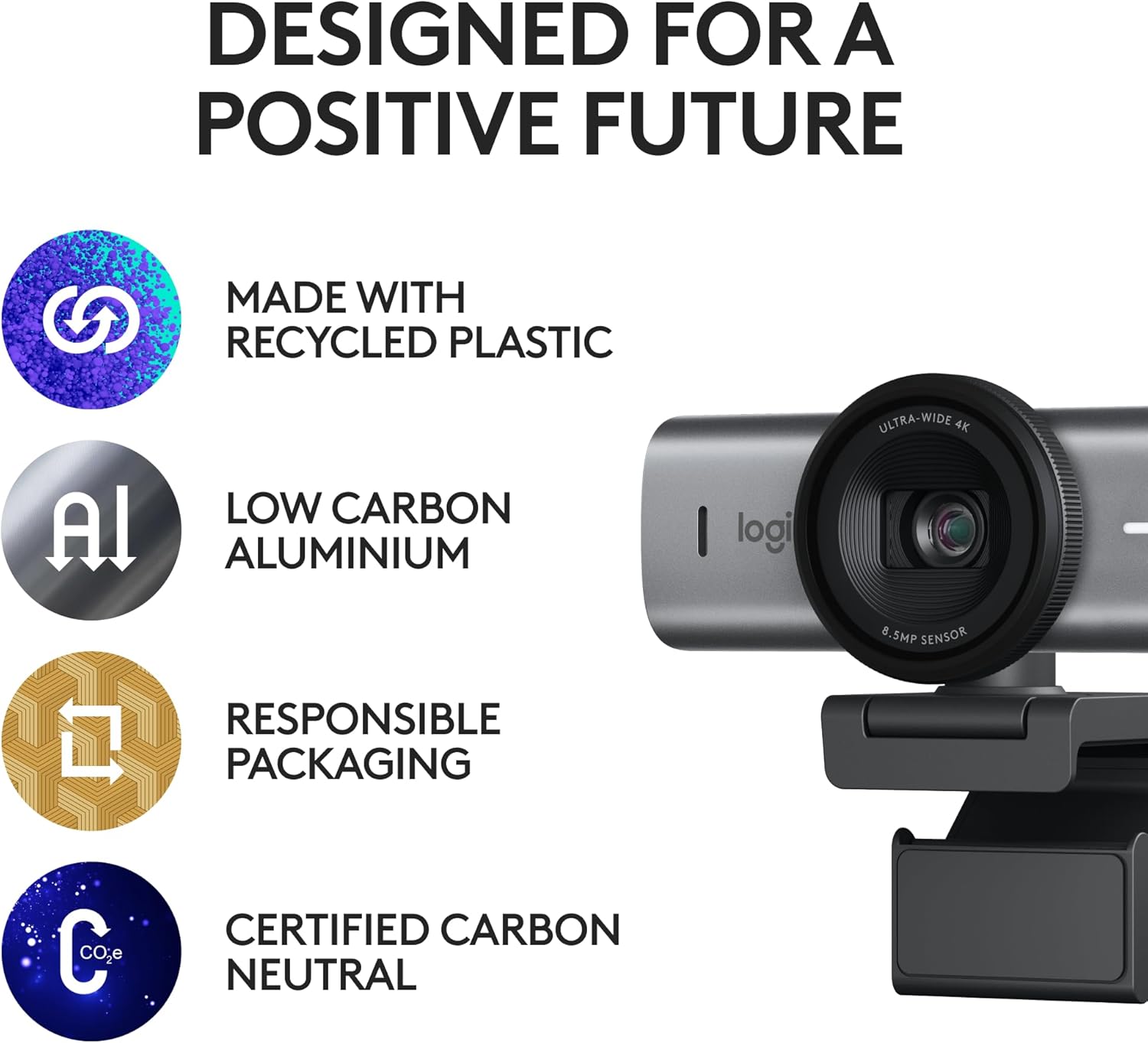
Image: The MX Brio 705 webcam accompanied by icons symbolizing its sustainable design, including the use of recycled plastic, low-carbon aluminum, responsible packaging, and carbon neutrality.
Garanti och support
För garantiinformation, teknisk support och ytterligare resurser, besök den officiella Logitech-supporten. website. User documentation is also available online for further assistance.
Du hittar mer information och stöd på: Logitech Support


